
Based on experience with most computer ticket issues, most problems could be solved/prevented with a few actions to keep your computer comfortable, updated, and refreshed. Below are some tips and general best practices for computer care and maintenance:
- Close Sierra at the end of a workday.
- Weekly shutdown/restart of a computer.
- Wednesday night Windows updates (public computers with Deep Freeze vs. staff computers)
- Updating drivers (Dell SupportAssist or Dell Command Update)
- Uninstalling Wave Browser, potentially unwanted program that can lead to malware on machines.
- Moving away from Adobe Acrobat Reader
BEST PRACTICE: Closing Sierra at the end of the workday
Please do not leave Sierra open and running at the end of your working shift.
Reasons:
- Sierra database updates: Often Katie or ILS/tech staff are working on updates after hours. These updates to loan rules, locations codes, and other settings do not get applied in your Sierra instance until the program restarts.
- Similarly, if a new printer is installed on a computer, it will not be visible in Sierra until it closed and reopened.
- Good security practices. Sierra provides access to private patron information. On the off chance a computer is left on and still logged in and Sierra is up, anybody approaching the computer could potentially find information that legally is protected.
- Similarly, it is a best practice to log off your computer when you are stepping away. You can do this by pressing the Windows + L keys on the keyboard.
- Prevent errors. Stale program instances can lead to a build-up conditions that create errors. Sierra “acting strange” might be a case of not having the chance to clear out and start fresh.
BEST PRACTICE: Shut down and reboot your computer
Please be sure to shut down and reboot your computer at least once a week, if not daily.
It is true that there is no real “need” to turn your computer off each night, but like many things, a period of rest doesn’t hurt. However, computers can be left on, but they benefit from a restart to clear out extraneous processes. All of us benefit from unplugging for a bit.
It is also true that a “restart” can be even more effective in clearing out processes than shutting down and turning back on.
If you have a laptop, please completely shutdown before packing up in a bag. Simply closing the lid may put it into hibernation mode, but there is a chance of a process waking the computer up and causing heat to build up while it is in a case.
INFORMATION: Windows updates
Supported operating systems receive regularly updates and patches for both performance and security purposes. It is always a best practice to make sure updates are downloaded and installed in a timely manner.
That said, there are processes in place that may override your individual ability to manually update a computer.
Computers with Deep Freeze
Best practice: leave all computers with Deep Freeze (public computers) on on Wednesday nights. Deep Freeze is programmed to thaw the computer and go out and download and install updates overnight on Wednesdays. When working correctly, Deep Freeze computers should be shut down on Thursday mornings.
What about staff computers without Deep Freeze?
If you attempt to update a library computer by going to Windows Settings > Windows Update, you might encounter a message that says, “Your organization manages updates on this computer.” WVLS/LEANWI tech staff are implementing processes that run in the background to manually support updates for computers without Deep Freeze. You certainly can try to run manual updates, but they won’t work in all instances.
It is also useful to leave computers on overnight one night a week (Wednesdays are convenient because you should be leaving public computers on) to allow your computer to install updates outside of normal working hours. You may find the computer asking you to reboot to install updates.
BEST PRACTICE: Driver Updates
You might be familiar with operating system updates, but did you know your computer hardware has software attached to it that needs updating sometimes too?
Often these updates are handled through the usual “Windows update” process, but for [reasons], sometimes they don’t happen as smoothly as we’d like.
Most LEANWI/WVLS supported computers out at libraries are Dell. Dell computers have two options for programs that specifically search for and install driver updates.
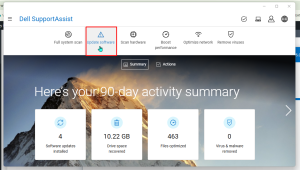
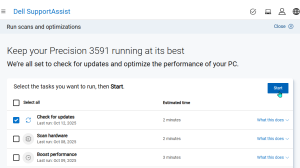
- SupportAssist (also does some additional hardware scans in addition to driver updates)

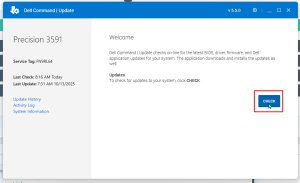
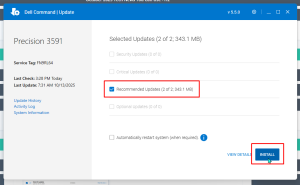
- Command Update (driver updates only)

It’s likely one or both of these programs is already installed on your Dell computers, though you can download them if they are not.
Best practice:
- If you see a notification prompt saying “there are some updates to install on this computer,” allow those updates to install.
- [On some routine basis, it could be monthly, but weekly doesn’t hurt], open either SupportAssist or Command update on a staff computer and check for driver updates. If there are some, allow the computer to install and reboot the computer if necessary.
Command update:
SupportAssist:
ACTION: remove Wave Browser Malware
Please check your computers for a program called “Wave Browser” and uninstall it.
Wave Browser markets itself as a browser that promotes secure, fast internet browsing. However, it has been labeled as a “Potentially Unwanted Program” (PUP) by the Multi-State Information Sharing & Analysis Center for several reasons:
- It may be installed on your computer without your explicit consent when you download other (legitimate) software.
- It has been reported to display malicious adds, create pop-ups, and otherwise create pathways for malware to be installed on your computer.
- It may make itself difficult to uninstall and you may find it reinstalling itself after you have removed it.
What is is NOT: it is NOT the WAVE Web Accessibility Tool which is a legitimate tool for checking websites for accessibility compliance.
If you find this on a computer and have trouble removing it or find it is coming back after uninstalling, please send a message to .
INFORMATION: Moving away from Adobe Acrobat Reader
I have received more than a few complaints and have experienced my own frustrations with some of the changes that Adobe has been making to its popular PDF viewer program.
- While Adobe Acrobat Reader has been and continues to be free to use without registering for an account, there are occasional intrusive pop-ups that make it seem like it’s necessary to have an account to use the program.
- Added AI features also pop up suggesting unneeded actions.
- The menu bar is overly large and full items that are NOT free to use and unnecessary when the user simply wants to view or print a PDF.
As a result, I am in the process of uninstalling Adobe Acrobat Reader from staff and public computers and redirecting these computers to open PDFs in a browser (Chrome or Firefox) for simple viewing. New computers will no longer have Adobe Reader installed.
If you need more functionality than simply viewing PDFs and have questions about software options other than Adobe, please send an email to .